

Introduction
Is your WooCommerce admin panel crawling? A slow dashboard not only frustrates store management but can also indicate high server load and inefficient settings. In this guide, you’ll discover 17 effective ways to speed up your WooCommerce admin, reduce CPU and memory usage, and streamline your store’s performance.
Steps to Speed Up Your WooCommerce Admin
- Disable high CPU plugins
- Control cache preloading and clearing
- Use cloud hosting with Cloudflare Enterprise
- Enable Redis object cache
- Activate OPcache
- Remove WooCommerce bloat
- Deep clean your database
- Clear customer sessions and transients
- Disable WP-Cron
- Limit Heartbeat, autosaves, and revisions
- Protect your wp-login page
- Cache the WordPress admin
- Upgrade to PHP 8+
- Increase memory limit
- Remove page builders
- Enable Argo Smart Routing
- Run diagnostic tools
1. Disable High CPU Plugins
Some plugins run intensive background tasks or load extra scripts, slowing your admin. Deactivate plugins one by one to identify and remove the worst offenders.
2. Control Cache Preloading and Clearing
Cache plugins often rebuild the entire cache on certain triggers, taxing your server. Limit automatic clearing and preload only essential sitemap URLs, scheduling full cache rebuilds during off-peak hours.
3. Use Cloud Hosting with Cloudflare Enterprise
Shared hosting struggles with WooCommerce’s dynamic requests. Opt for cloud hosting that includes Redis, NVMe SSDs, and free Cloudflare Enterprise to dramatically reduce TTFB and improve admin responsiveness.
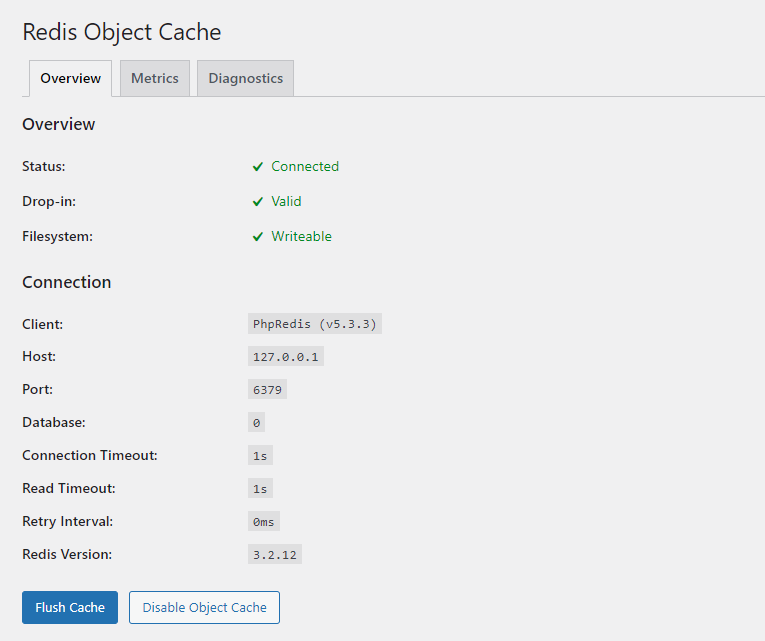
4. Enable Redis Object Cache
Redis stores frequently accessed data in memory, reducing database queries. Install and configure the Redis Object Cache plugin to lower memory usage and speed up admin operations.
5. Activate OPcache
OPcache caches compiled PHP code to cut down processing time. Enable it in your hosting control panel to improve PHP performance and reduce CPU overhead.
6. Remove WooCommerce Bloat
Use a plugin like Disable WooCommerce Bloat to turn off unused scripts, styles, widgets, and dashboard items, trimming unnecessary load from the admin.
7. Deep Clean Your Database
Leftover tables from uninstalled plugins bloat your database. Tools like WP-Optimize let you find and delete unused tables and optimize overhead.
8. Clear Customer Sessions and Transients
The wp_options table can grow quickly from WooCommerce sessions and transients. Clear them regularly in WooCommerce Status settings and replace inefficient wp-cron jobs with real server cron jobs.
9. Disable WP-Cron
By default, wp_cron runs on every page load, increasing CPU usage. Disable it in wp-config.php and set up a real cron job to run scheduled tasks every 60–90 minutes.
10. Limit Heartbeat, Autosaves, and Revisions
The Heartbeat API, autosaves, and unlimited post revisions generate frequent background requests. Use plugins or code to throttle or disable these features in the admin.
11. Protect Your wp-login Page
Move or restrict access to your login URL and add Cloudflare rules or login attempt limits to block unwanted bots from hammering your admin.
12. Cache the WordPress Admin
Some caching solutions allow admin caching. Be cautious of stale data, but if implemented correctly, it can significantly accelerate page loads in the dashboard.
13. Upgrade to PHP 8+
PHP 8 offers significant performance gains. Switch to PHP 8.0 or 8.1 in your hosting panel and test your site for compatibility.
14. Increase Memory Limit
WooCommerce recommends at least 256 MB of PHP memory. Edit wp-config.php to raise WP_MEMORY_LIMIT to 512 MB or higher for smoother operations.
15. Remove Page Builders
Heavy page builders like Elementor and Divi load extra CSS/JS even in the admin. Switch to a lightweight theme and the native block editor for faster performance.
16. Enable Argo Smart Routing
Cloudflare’s Argo Smart Routing finds the fastest network paths for dynamic requests, reducing latency by up to 30%.
17. Run Diagnostic Tools
Plugins like Query Monitor, WP Hosting Benchmark, and Transients Manager help pinpoint bottlenecks, CPU hogs, and database issues so you can target optimizations precisely.
Implementing these steps will transform your WooCommerce admin into a responsive, efficient dashboard—saving time and server resources.