

Even though I think SiteGround is overpriced and their built-in tools don’t excel at Web Vitals, you can still make your SiteGround site load lightning-fast by following these 15 steps to improve LCP, TTFB, and overall performance.
Start by using a dedicated optimization plugin like FlyingPress alongside SiteGround Optimizer for Memcached. Then add Cloudflare’s APO or FlyingProxy for full-page caching, faster DNS, and global PoPs. These changes alone will dramatically lower your TTFB and boost Core Web Vitals.
Below is the complete 15-step checklist. Follow each step in order and test with GTmetrix, KeyCDN’s Performance Test, or SpeedVitals for the best results.
- Configure FlyingPress
- Configure SiteGround Optimizer
- Setup Cloudflare’s APO
- Use Cloudflare’s DNS
- Resize images for mobile
- Disable plugins on specific pages/posts
- Remove old plugin tables with WP-Optimize
- Configure SiteGround Security
- Choose the closest SiteGround data center
- Optimize your page builder
- Upgrade to PHP 8+
- Replace WP-Cron with a real cron job
- Don’t upgrade to SiteGround’s cloud hosting
- Stop using SiteGround
- Use faster LiteSpeed or cloud hosting
1. Configure FlyingPress
FlyingPress outperforms SiteGround Optimizer and WP Rocket on Core Web Vitals. Install FlyingPress first, enable cache, CSS/JS optimization, font preloading, image lazy-loading, and HTML element lazy render. Avoid overlapping features—disable those same options in SG Optimizer.
2. Configure SiteGround Optimizer
Use SG Optimizer only for Memcached (activate it in Site Tools) plus HTTPS enforce and GZIP compression. Turn off dynamic/file caching, browser cache, frontend optimization, lazy loading, Heartbeat control, and scheduled maintenance to prevent conflicts with FlyingPress and Cloudflare APO.
3. Setup Cloudflare’s APO
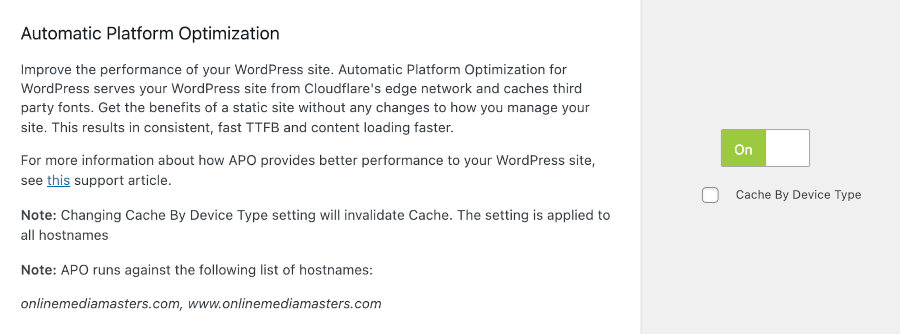
Cloudflare’s Automatic Platform Optimization (APO) caches HTML globally, slashing TTFB in multiple regions. Change your DNS to Cloudflare, enable proxy, purchase APO ($5/mo), install the Cloudflare plugin, add your API token, then purge caches. Verify APO via uptrends.com.
4. Use Cloudflare’s DNS
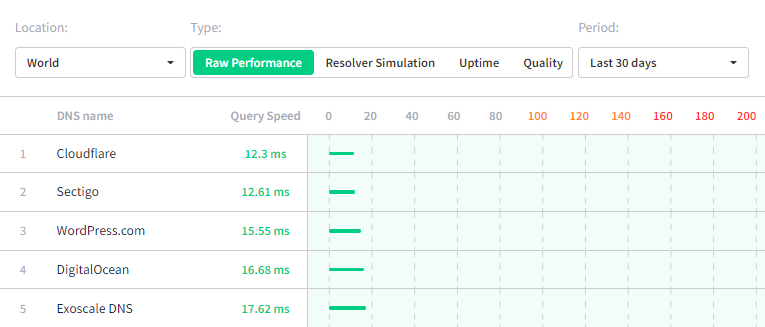
SiteGround’s DNS has suffered outages and even blocking events. Switch to Cloudflare DNS for faster, more reliable resolution (see dnsperf.com for performance rankings).
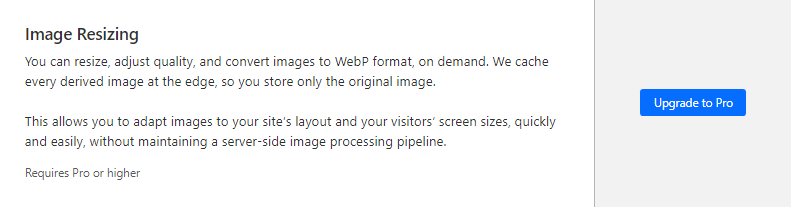
5. Resize Images for Mobile
Poor mobile LCP often comes from oversized images. Use ShortPixel Adaptive Images, Cloudflare Image Resizing (Pro), or Bunny Optimizer via FlyingCDN to serve correctly sized images per device.
6. Disable Plugins on Specific Pages/Posts
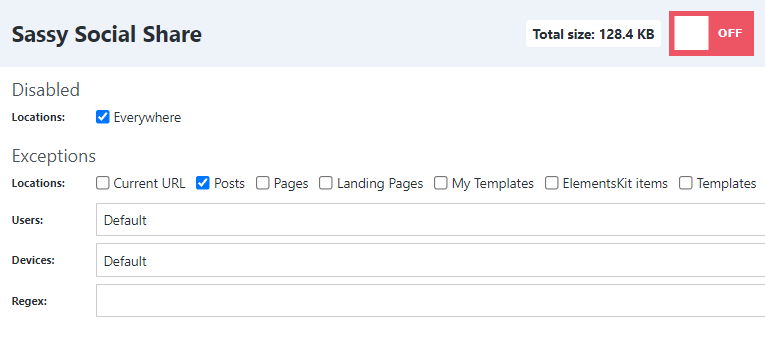
Unload plugin assets where they’re not needed using Perfmatters’ Script Manager or the free Asset CleanUp plugin. Disable form, social share, and WooCommerce scripts on pages that don’t use them to reduce CSS/JS payload.
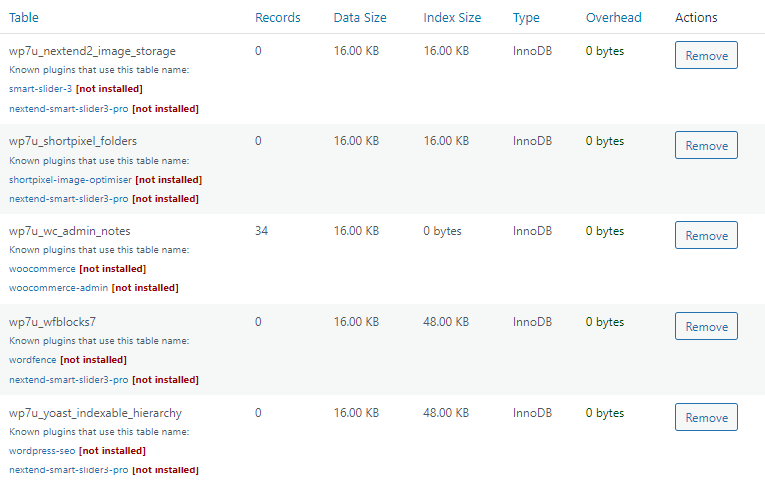
7. Remove Old Plugin Tables with WP-Optimize
Deleted plugins often leave orphaned database tables. Run WP-Optimize, review unused tables, and remove leftovers to reduce database bloat and queries.
8. Configure SiteGround Security
Install SG Security to block XML-RPC, limit login attempts, change your login URL, and enable two-factor authentication. Reducing unwanted traffic also lightens server load.
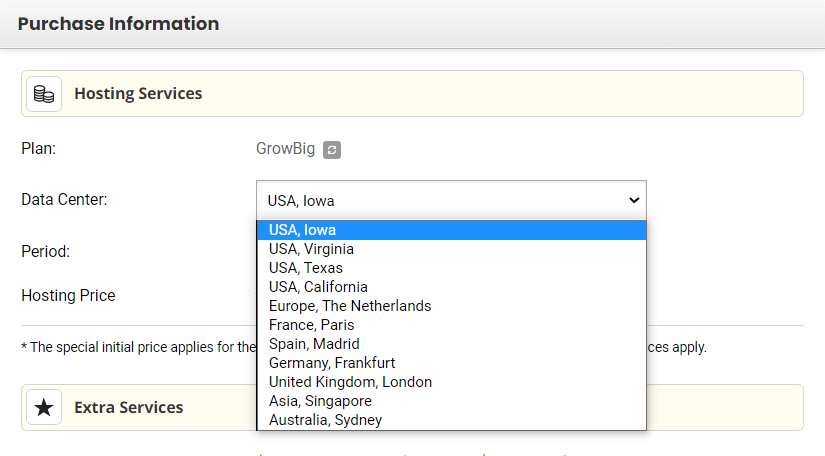
9. Choose the Closest SiteGround Data Center
When purchasing hosting, select the data center nearest your audience. For global visitors, rely on your CDN’s PoPs instead.
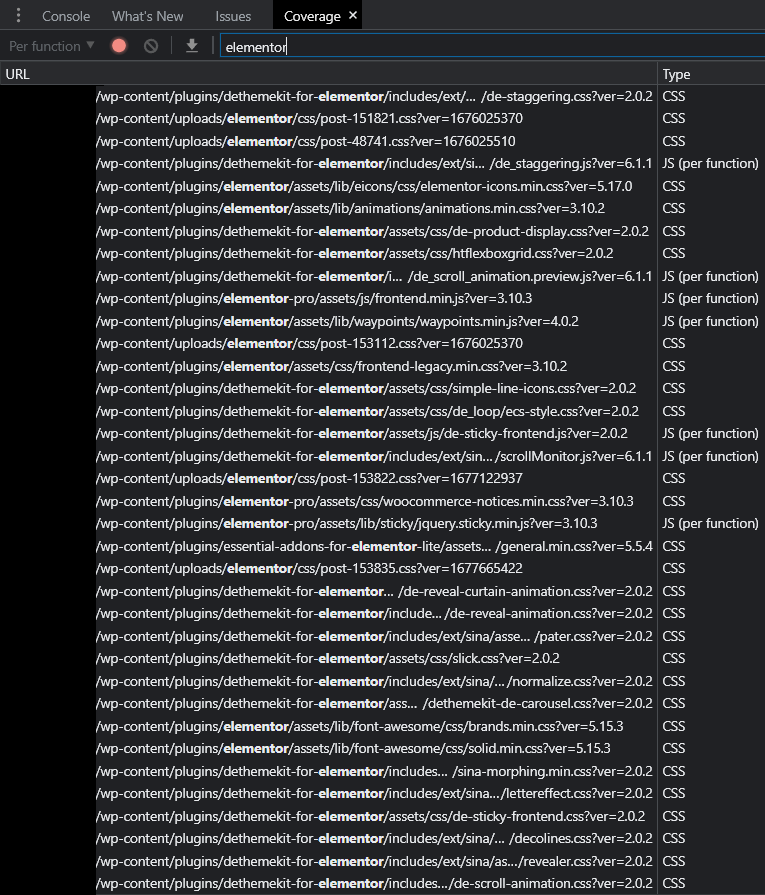
10. Optimize Your Page Builder
Elementor and Divi add heavy CSS/JS. Use their built-in performance settings, disable block-library CSS in FlyingPress, and apply exclusions from Perfmatters docs. Consider lightweight themes like GeneratePress.
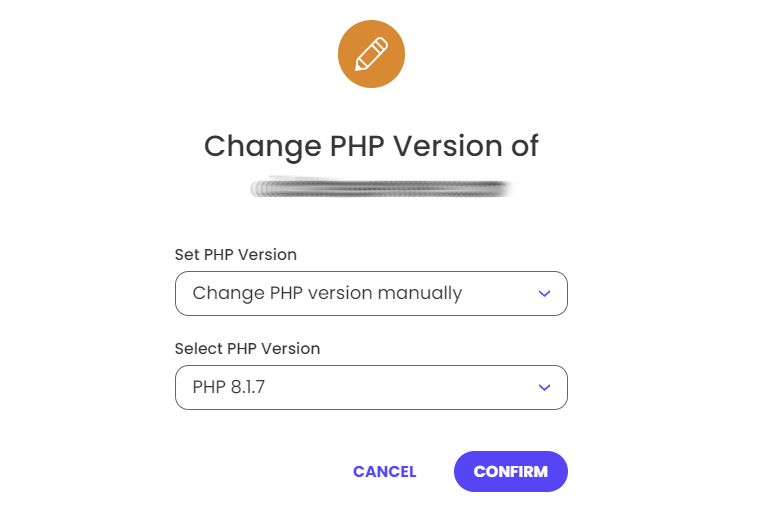
11. Upgrade to PHP 8+
In Site Tools → Devs → PHP Manager, switch to PHP 8 or higher. Newer PHP versions run code faster and improve response times.
12. Replace WP-Cron with a Real Cron Job
Disable WP-Cron in wp-config.php (define('DISABLE_WP_CRON', true);) and set up a server cron under Site Tools → Cron Jobs to run every 30 minutes, reducing CPU spikes from on-page cron triggers.
13. Don’t Upgrade to SiteGround’s Cloud Hosting
Their cloud tier still uses SATA SSDs and limited CPU; many users report persistent limits and 503 errors. It’s not a performance leap for the $100+/mo price.
14. Stop Using SiteGround
SiteGround suffers slow hardware, a history of TTFB issues, CPU throttling, high renewal rates, and aggressive upsells. Consider moving to faster, more transparent hosts.
15. Use Faster LiteSpeed or Cloud Hosting
Switch to LiteSpeed-powered shared hosting (ChemiCloud, NameHero) or trusted cloud providers (ScalaHosting, Cloudways, Rocket.net) for NVMe storage, Redis, and global CDNs that outperform SiteGround.
(Kéo mảng từ Aggregator 75 vào đây)
(Kéo nội dung từ module OpenAI/Google Sheets đầu tiên vào đây)