

Introduction
Cloudways has released key updates to the Breeze WordPress cache plugin, adding JavaScript delay, heartbeat control, font preloading and DNS prefetch. This guide covers the recommended settings to optimize caching, file minification, preload, CDN, Varnish, database cleanup and more.
1. Basic Options
- Cache System: On
- Purge Cache After: 1440 minutes (1 day)
- Gzip Compression: On
- Browser Cache: On
- Lazy Load Images: On
- Cross-origin Safe Links: On
- Cache Logged-in Users: Off

2. File Optimization
Test minification and combination settings carefully to avoid breaking your site. Exclude problematic files rather than disabling optimizations entirely.
HTML Settings
- HTML Minify: On
CSS Settings
- CSS Minify: On
- Font remain visible during load: Add
font-display:swap - Include Inline CSS: On
- Combine CSS: Off
- Exclude CSS: List any files that cause issues
JS Settings
- JS Minify: On
- Combine JS: Off
- Include Inline JS: On
- Exclude JS: List files if needed
- Move JS Files to Footer: Only safe files
- JS Files With Deferred Loading: Specify any render-blocking scripts
- Delay JS Inline Scripts: On

3. Preload
- Preload Webfont: Preload any above-the-fold fonts
- Preload Links: On
- Prefetch DNS Requests: Add third-party domains

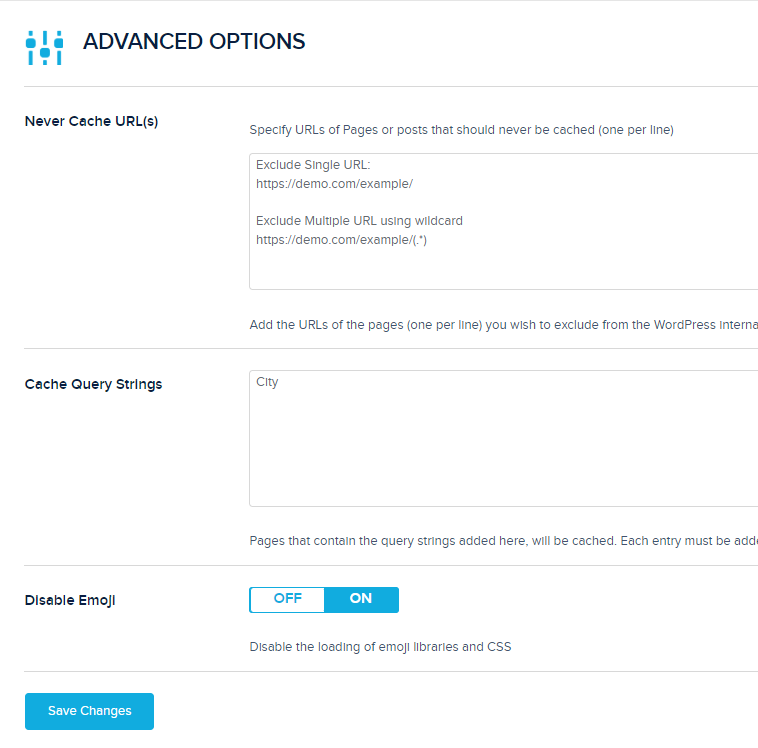
4. Advanced Options
- Never Cache URLs: Exclude dynamic pages (e.g., WooCommerce)
- Cache Query Strings: Add any query parameters to cache
- Disable Emoji: On
5. Heartbeat API
- Control Heartbeat: On
- Heartbeat Front-end: Disable
- Heartbeat Post Editor: Every 5 minutes
- Heartbeat Back-end: Disable

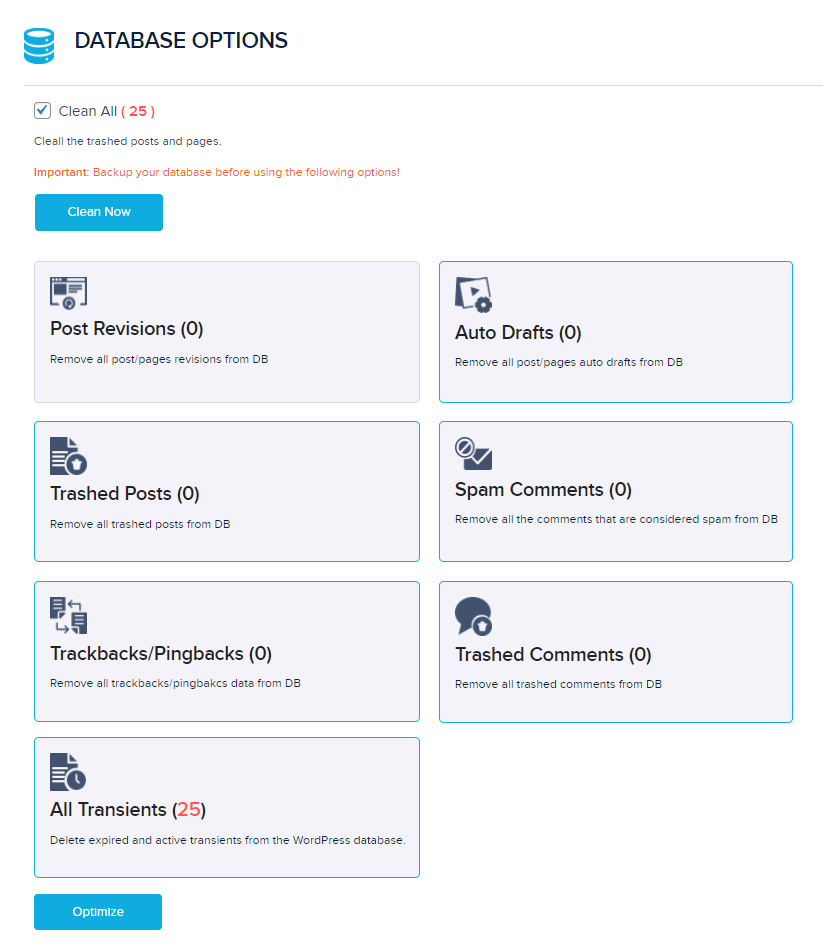
6. Database Options
Clean all items except post revisions and schedule regular database optimizations with a plugin like WP-Optimize.
7. CDN
- Activate CDN: On (if using a CDN URL)
- CDN CNAME: Your CDN URL
- CDN Content: wp-includes, wp-content
- Exclude Content: Leave default
- Relative Path: On

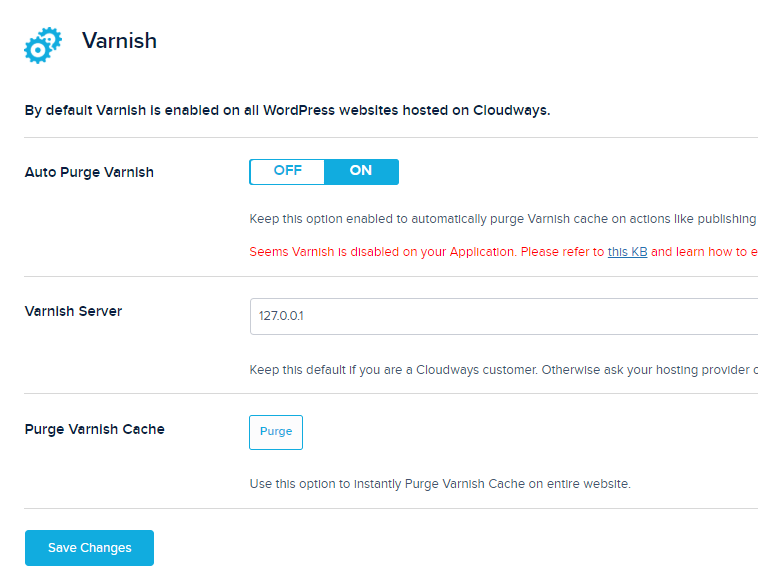
8. Varnish
- Auto Purge Varnish: On
- Varnish Server: Your server IP
- Purge Varnish Cache: Manual purge on changes
9. Additional Plugins
To compensate for missing features, use plugins like Autoptimize, OMGF, Perfmatters, WP-Optimize, WP YouTube Lyte, and ShortPixel.
10. More Cloudways Optimizations
- Enable Varnish and Redis
- Use PHP 8.0 and MariaDB 10.4
- Increase memory limits to at least 256MB
- Replace wp-cron with a real cron job
- Monitor performance in Cloudways Analytics
Final Thoughts: Breeze is improving, but may still require extra tools for core web vitals. For full-featured performance, consider FlyingPress or a dedicated speed plugin.