

Optimize WordPress Images for Speed
Optimizing images is more than just compressing in Photoshop. To maximize performance, you need a combination of image CDNs, cache plugins, responsive resizing and next-gen formats.
1. Choose an Image Optimization Service
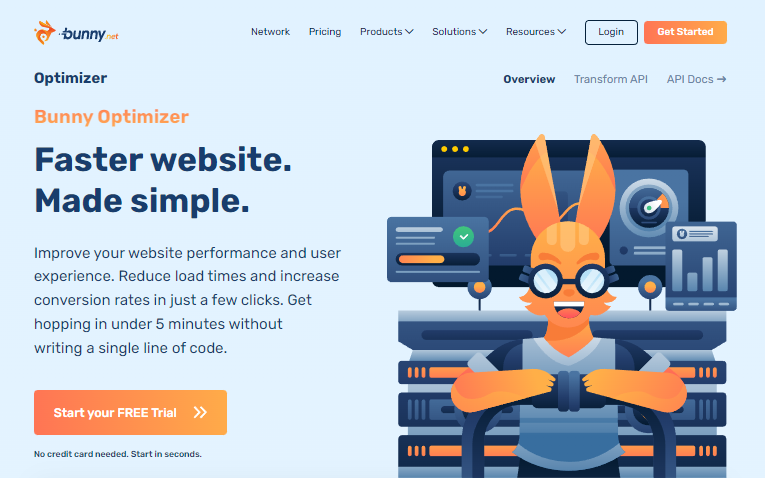
Image CDNs outperform plugins by resizing on the fly, avoiding server bloat and handling mobile variants. Top picks include BunnyCDN’s Optimizer, Cloudflare Polish/Mirage and FlyingCDN (Bunny Optimizer).
2. Resize Images to Exact Dimensions
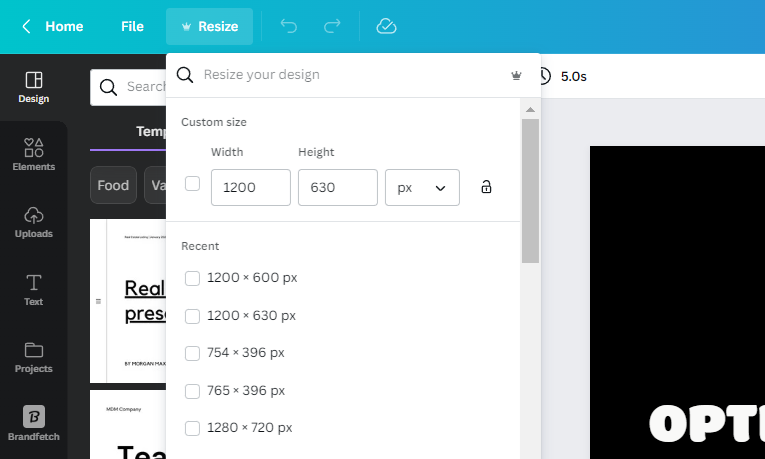
Create a simple “dimensions cheat sheet” for logos, sidebars, featured images, social thumbnails and backgrounds. Always upload at the exact width and height to avoid unnecessary scaling.
3. Serve Responsive Images for Mobile
Use CDNs or plugins that support adaptive images—Cloudflare Image Resizing, Bunny Optimizer or ShortPixel Adaptive Images—to automatically serve smaller files on mobile devices.

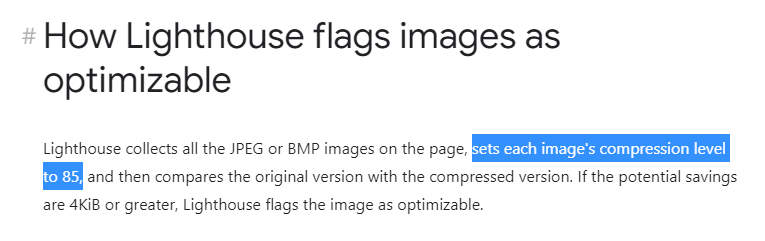
4. Compress at 85%
Lighthouse audits assume 85% JPEG compression. Pre-compress in your editor or let your CDN handle it, but avoid overloading your server with on-upload tasks.
5. Serve WebP (or Convert Manually)
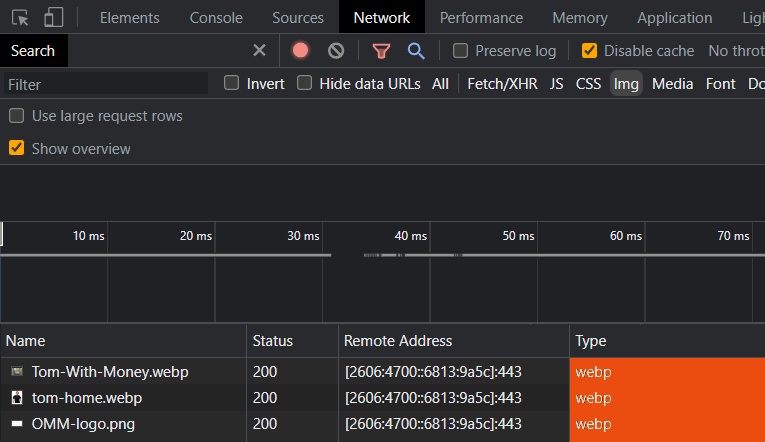
WebP can cut file size by over 50%. Confirm delivery in the Network tab in DevTools and consider manually converting your critical above-the-fold images for guaranteed results.
6. Preload Above-the-Fold Images
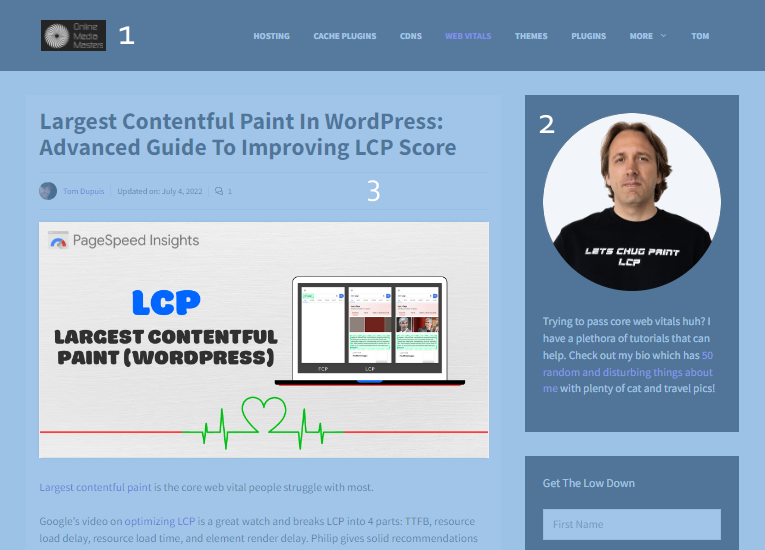
Preloading your Largest Contentful Paint (LCP) element ensures it’s prioritized. Plugins like FlyingPress and Perfmatters let you auto-preload the first 2–3 images and disable their lazy load.
7. Exclude Above-the-Fold from Lazy Load
Lazy loading your LCP element delays rendering. Use the same “critical images” setting in Perfmatters or FlyingPress to exclude and preload these images automatically.

8. Lazy Load Background Images
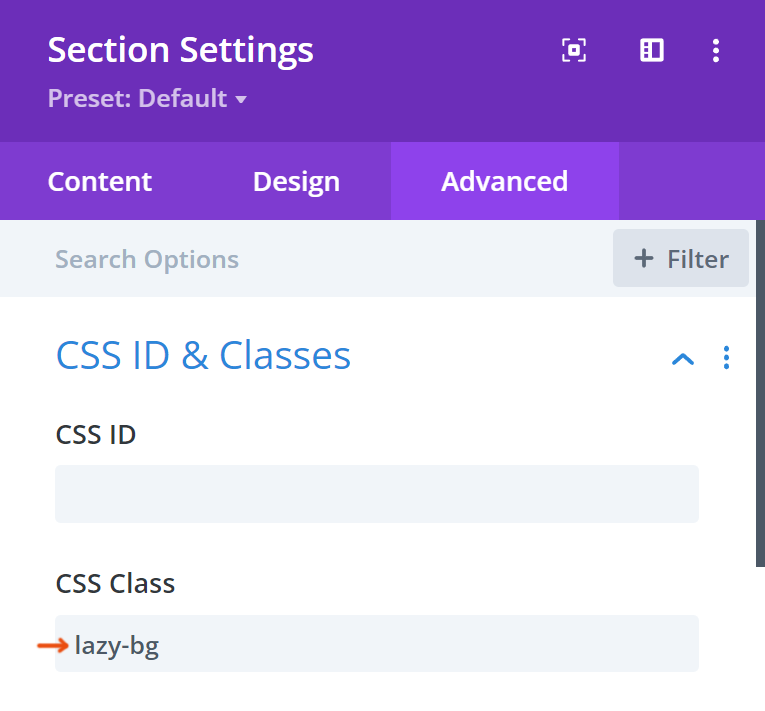
Backgrounds loaded via CSS aren’t lazy by default. Add a lazy-bg helper class or use your cache plugin’s built-in feature to defer them.
9. Specify Width & Height Attributes
Missing dimensions cause layout shifts. Most cache plugins auto-add width and height, but you can manually embed width="" and height="" in your <img> tags.

10. Set 1-Year Cache Expiry
Static images rarely change—serve them with a 31536000s TTL. Configure Cloudflare or your host’s cache settings to meet browser caching best practices.

11. Disable Hotlinking
Prevent other sites from embedding your images directly—this saves your bandwidth. Enable hotlink protection via Cloudflare or your hosting dashboard.
12. Self-Host YouTube Thumbnails
Embedded videos load external thumbnails. Plugins like FlyingPress can download and serve YouTube preview images from your server.
13. Use Local Avatars
Using Gravatar causes extra external requests. Install a local avatar plugin or delay loading comments to improve performance.
14. Strip EXIF Data
Remove unneeded metadata—like camera info—to shave bytes off each image. Most optimization CDNs and plugins include an EXIF-strip option.
15. Reduce Quality on Slow Networks
Some CDNs (Optimole, Cloudflare Mirage) detect slow connections and lower image quality automatically, improving perceived load times for mobile users.
Implementing these 15 strategies will drastically improve your WordPress page speed, Core Web Vitals and overall user experience.