

Third-party code—from Google Fonts and Analytics to embedded videos and external plugins—can slow down your WordPress site. Below are 16 strategies to reduce its impact and boost your performance.
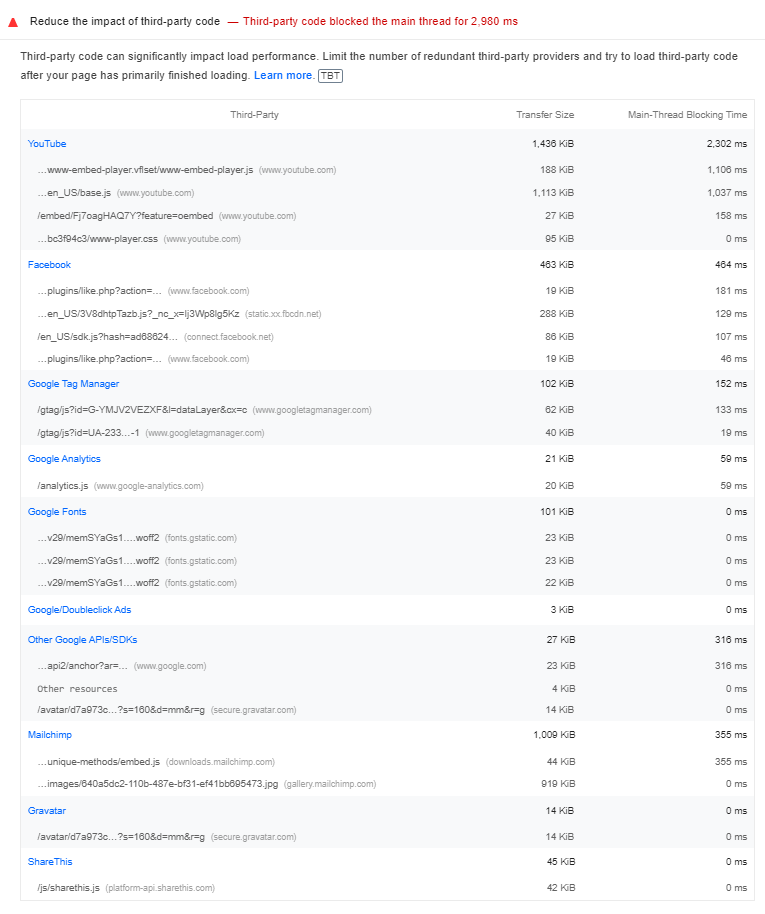
1. Find Third-Party Domains Loading On Your Site
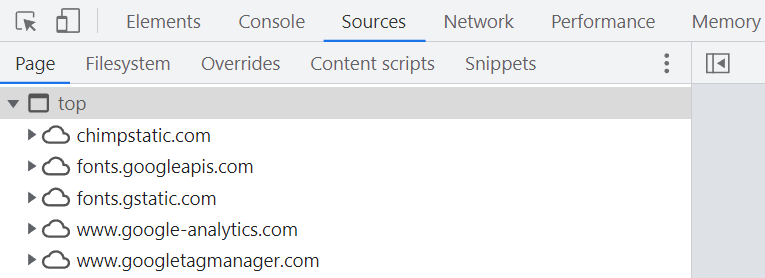
Use tools like PageSpeed Insights or Chrome DevTools to list all external domains your site calls. Identify which services load scripts or assets on your pages.
2. Delay Their JavaScript
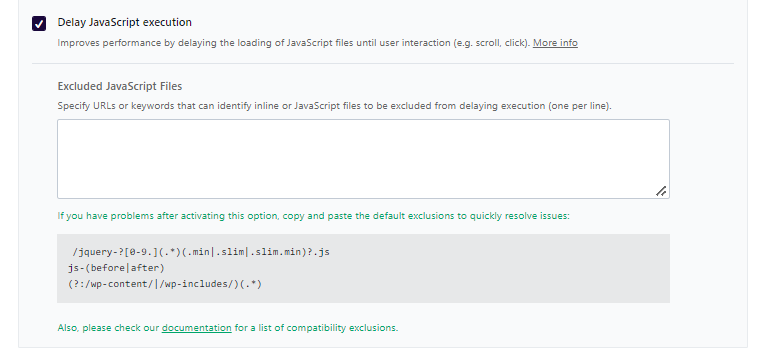
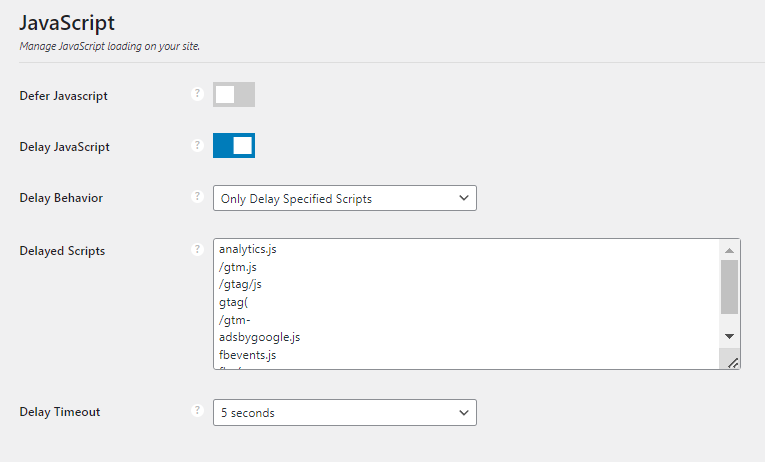
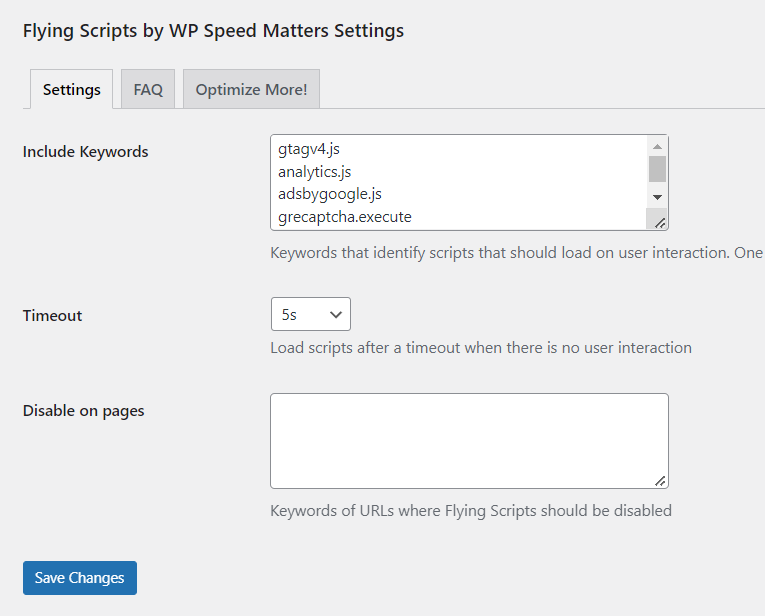
Delaying third-party scripts until user interaction can significantly improve load times. Many cache plugins offer this feature:
- WP Rocket: Delay JavaScript execution until scroll or click.
- LiteSpeed Cache: Enable load JS deferred.
- Perfmatters or Flying Scripts: Manually add and delay specific files.
3. Host Fonts and Analytics Locally
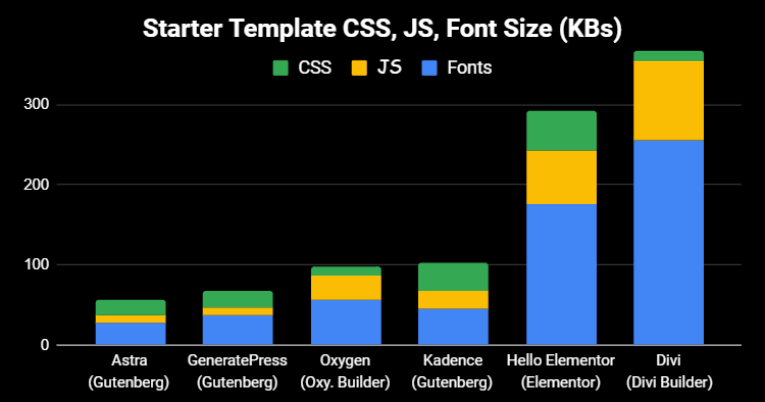
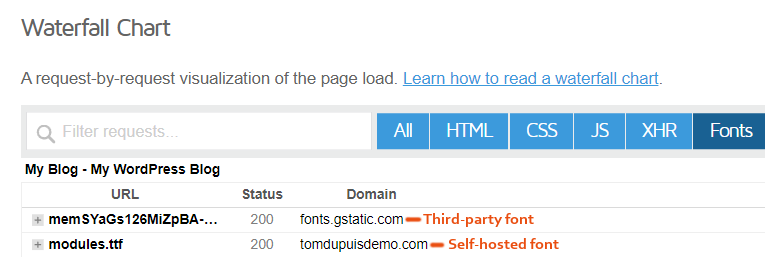
Hosting assets on your own server reduces external requests. Self-host Google Fonts and analytics scripts using plugins like Perfmatters, FlyingPress, or OMGF, then preload them.
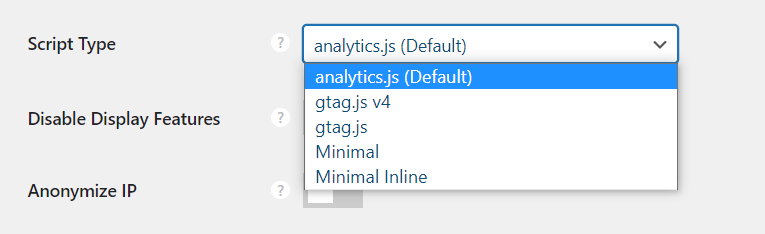
4. Use a Smaller Google Analytics Tracking Code
Opt for a minimal Analytics script (about 1.5 KB) instead of the full gtag.js to save roughly 50 KB.
5. Disable Analytics Remarketing and Advertising
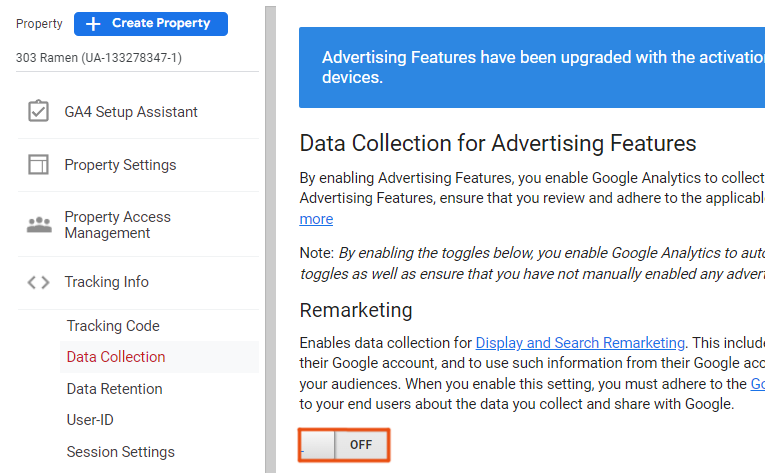
Disable display features in Google Analytics or via your plugin to avoid extra calls to DoubleClick.
6. Use Local Avatars
Replace Gravatar requests with a local avatar plugin such as Simple Local Avatars to avoid gravatar.com calls.
7. Lazy Load Iframes and Optimize Videos
Lazy load video iframes and use preview images instead of embedding heavy players.
8. Choose a Lightweight Social Sharing Plugin
Use a minimal plugin like Grow By Mediavine and delay its scripts to limit external requests.
9. Disable Third-Party Code on Specific Pages
Unload scripts on pages where they’re not needed using asset management plugins.
10. Disable MailChimp Where Not Needed
Apply filters or use plugin settings to load MailChimp scripts only on targeted pages.
11. Disable New Relic
Turn off New Relic monitoring script once you’ve collected performance data.
12. Disable Cloudflare Email Obfuscation
Disable email-decode.min.js if you don’t need to protect email addresses.
13. Avoid Overtracking in Google Tag Manager
Limit the number of tags and scripts in GTM to prevent performance degradation.
14. Add Prefetch or Preconnect Hints
Use resource hints sparingly for critical third-party domains to establish early connections.
15. Offload Scripts to Cloudflare Zaraz
Consider Cloudflare Zaraz to load third-party tools from the cloud and reduce site workload.
16. Replace Embeds with Screenshots
Convert embedded content like tweets or posts into images to eliminate external requests.
By implementing these strategies, you’ll reduce external calls, lower blocking times, and achieve faster WordPress performance.