

Why Exclude Your IP?
When you navigate your own website, those visits show up in Google Analytics and can distort your data. To keep your metrics accurate, it’s best to block out any traffic coming from your IP address and that of your colleagues or office network.

Find Your IP Address
Visit whatsmyip.org to view the public IP address for each network or device you wish to exclude. Repeat this on all Wi-Fi connections and mobile data sources.

Set Up an IP Exclusion Filter in Google Analytics
Follow these steps to exclude unwanted traffic:
- Log in to Google Analytics and select your property.
- Click the Admin gear icon.
- In the Account column, choose All Filters.
- Select Add Filter.
- Enter a name for your filter (for example, your IP address).
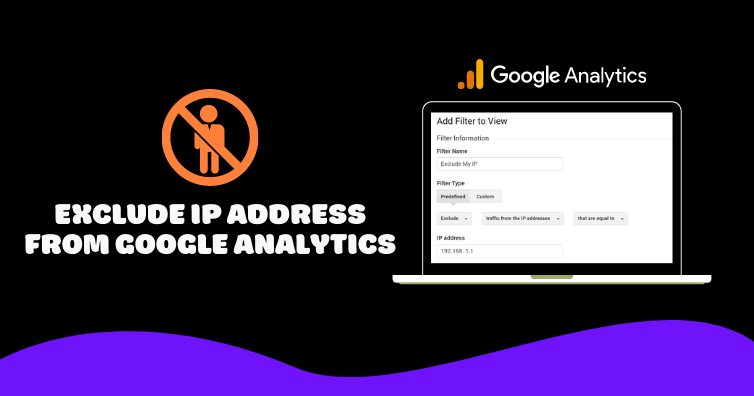
- Set the Filter Type to Predefined.
- Choose Exclude > traffic from the IP addresses > that are equal to.
- Paste your IP address and save the filter.

Note that any historical data will still include past visits, but future reports will be free from your filtered traffic, giving you clearer insights.
Related Articles
Hope you found this guide helpful! If you have any questions on Google Analytics or SEO, feel free to leave a comment. And if you learned something new, please share it with a friend.
Cheers,
