

Introduction
I previously used Cloudways Vultr HF with Cloudflare Enterprise, WP Rocket, and Perfmatters. However, Cloudways doesn’t support full page caching on Cloudflare Enterprise, which can slow your TTFB in tools like SpeedVitals and KeyCDN. Since hosting and CDN affect 40% of LCP, I switched to Rocket.net. Their Cloudflare Enterprise setup delivers under 100 ms TTFB. I migrated my site, upgraded to PHP 8.1, and enabled Redis—Cloudflare Enterprise was automatic.
You can remove image optimization and security plugins since Cloudflare Polish, Mirage, and WAF handle those tasks. I manually converted key images to WebP because Polish didn’t serve them consistently.
Next, I replaced WP Rocket with FlyingPress, which outperforms WP Rocket in core web vitals. I also use Perfmatters for its script manager and general optimizations. Below are the exact steps and settings.
Table of Contents
1. Configure Rocket.net
- Free Migration: Get your first month for $1, then request a free migration via their dashboard.
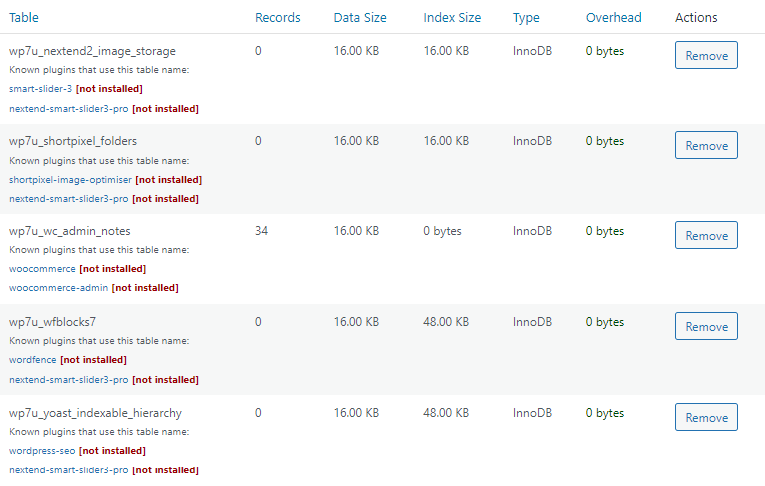
- PHP & Auto-Updates: Use PHP 8.1 and enable auto-updates for WordPress core and your theme. Manage database cleanup with phpMyAdmin or WP-Optimize.
- Redis Object Cache: Ask support to install Redis (Object Cache Pro included on Enterprise plans) for dynamic sites.
- Remove Plugins: Delete image optimization and security plugins—Cloudflare Enterprise handles these tasks.
- WebP Images: Cloudflare Polish may not always serve WebP, so manually convert key images (especially above the fold).
- No CDN URL Needed: Rocket.net’s Cloudflare Enterprise is automatic—no need to add any CDN domain to FlyingPress or Perfmatters.
2. Configure FlyingPress
FlyingPress handles the core web vital optimizations outside hosting/CDN.
Cache Settings
- Cache Pages: On (page caching complements Cloudflare’s edge cache).
- Auto Purge: None (only purge if you have dynamic content).
- Cache Lifespan: Never (recommended).
- Exclude Pages: FlyingPress auto-excludes common dynamic pages.
- Logged-In Users: Off (admin can see stale cache).
CSS Optimization
- Minify & Combine CSS: On (disable CSS settings in Perfmatters).
- Critical CSS: Generate asynchronously (avoid “remove” mode if it breaks your site).
- Force Include Selectors: Add any CSS selectors that are missing from critical CSS.
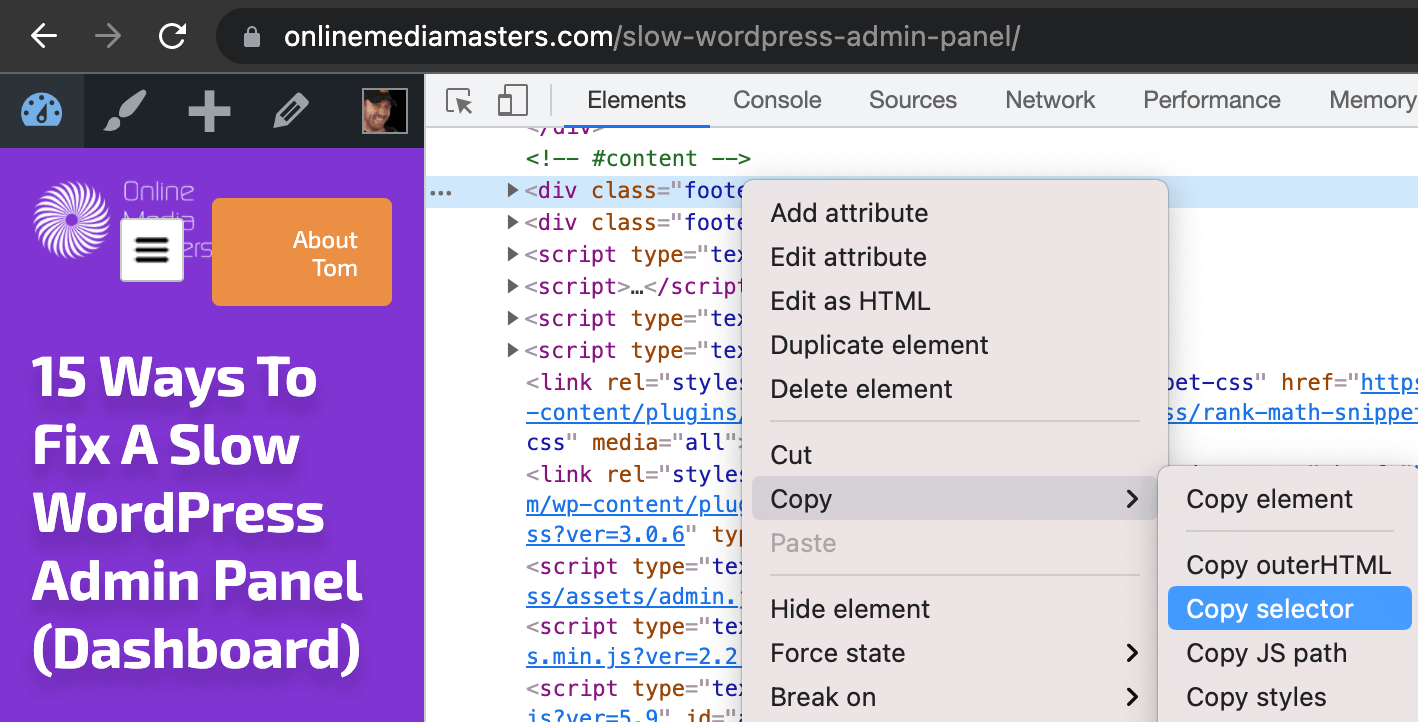
- Lazy Render Elements: Lazy load comments (
#comments) and footer (#footer) by copying selectors in Chrome DevTools.
JavaScript Optimization
- Minify JS: On.
- Preload Links: On (improves real-world browsing).
- Defer JS: Off (test before enabling).
- Load on Interaction: Delay third-party and plugin scripts below the fold.
Font Optimization
- Fallback Fonts: On (avoids CLS).
- Preload Fonts: On (preload your above-the-fold font files).
Image & iFrame
- Lazy Load Images: On.
- Add Dimensions: On (fixes explicit width/height errors).
- Preload Critical Images: On.
- Disable Emoji: On.
- Lazy Load iFrames: On.
- YouTube Placeholder: On and self-host the thumbnail to remove external requests.
3. Configure Perfmatters
Use Perfmatters primarily for script management and general cleanup.
General Settings
- Disable Dashicons, Embeds, XML-RPC, jQuery Migrate, WP Version, RSD link, shortlink, REST API for non-admins, password strength meter, comment URLs, global styles.
- Heartbeat: allow only on post editing and set to 60 s.
- Limit revisions to 5, autosave interval to 5 minutes.
- Change login URL to a custom path.
Script Manager
Enable Script Manager in test mode with dependencies shown. Disable unused plugin scripts and Gutenberg block library if not used.
4. Benchmarking Results
Use SpeedVitals or KeyCDN to test TTFB globally (test 3 times). Avoid single-location tools like PageSpeed Insights for TTFB.
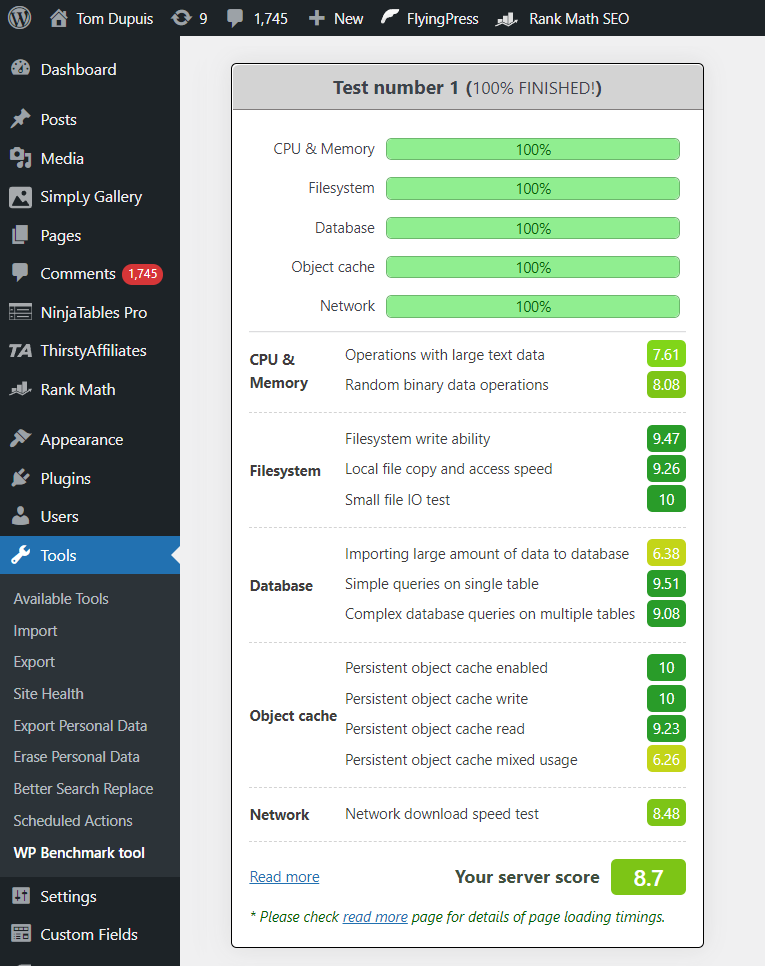
Use the WordPress Hosting Benchmark plugin for a server score and Search Console for Core Web Vitals reports.



Hope this helped—let me know if you have questions or want to see other setups!
Cheers,
Tom